Apps used in the lab
Slicer
3D Slicer is a cross-platform open source software platform for medical image informatics, image processing, and three-dimensional visualization. Built over two decades through support from the National Institutes of Health and a worldwide developer community, Slicer brings free, powerful cross-platform processing tools to physicians, researchers, and the general public.
It is the most used software for medical imaging in the lab. You will likely have to use it to view images. It can be downloader here.
JetBrains
JetBrains IDEs are the most useful software you’ll ever need in the lab, especially JetBrains PyCharm. It’s certainly one of the most powerful IDE for Python language ever made.
License
JetBrains IDE are not free. But, if you’re a student or an instructor (teaching staff members) all IDEs from JetBrains are free to use. You have to subscribe as student on the student section of JetBrains’ website. It can take a couple of days before being granted to use the Professional Edition for free. Your student status must be renewed every year.
You can also use the ETS licensing server. Simply select the option of License Server and enter the following URL
during installation: http://jetbrains-license.logti.etsmtl.ca:8080
Installation
Simply go to the PyCharm website and download the Professional Edition. Log in with your JetBrains account to register your copy.
Running remote code
Follow the instructions to configure your workstation to run your code remotely on any ETS server or workstation.
Configuring Deployment options
One of the most useful feature in the Professional Edition is the ability to run code remotely on ETS’ GPU servers.
To do so, you have to configure the Deployment options.
First, select PyCharms Menu -> Preferences.
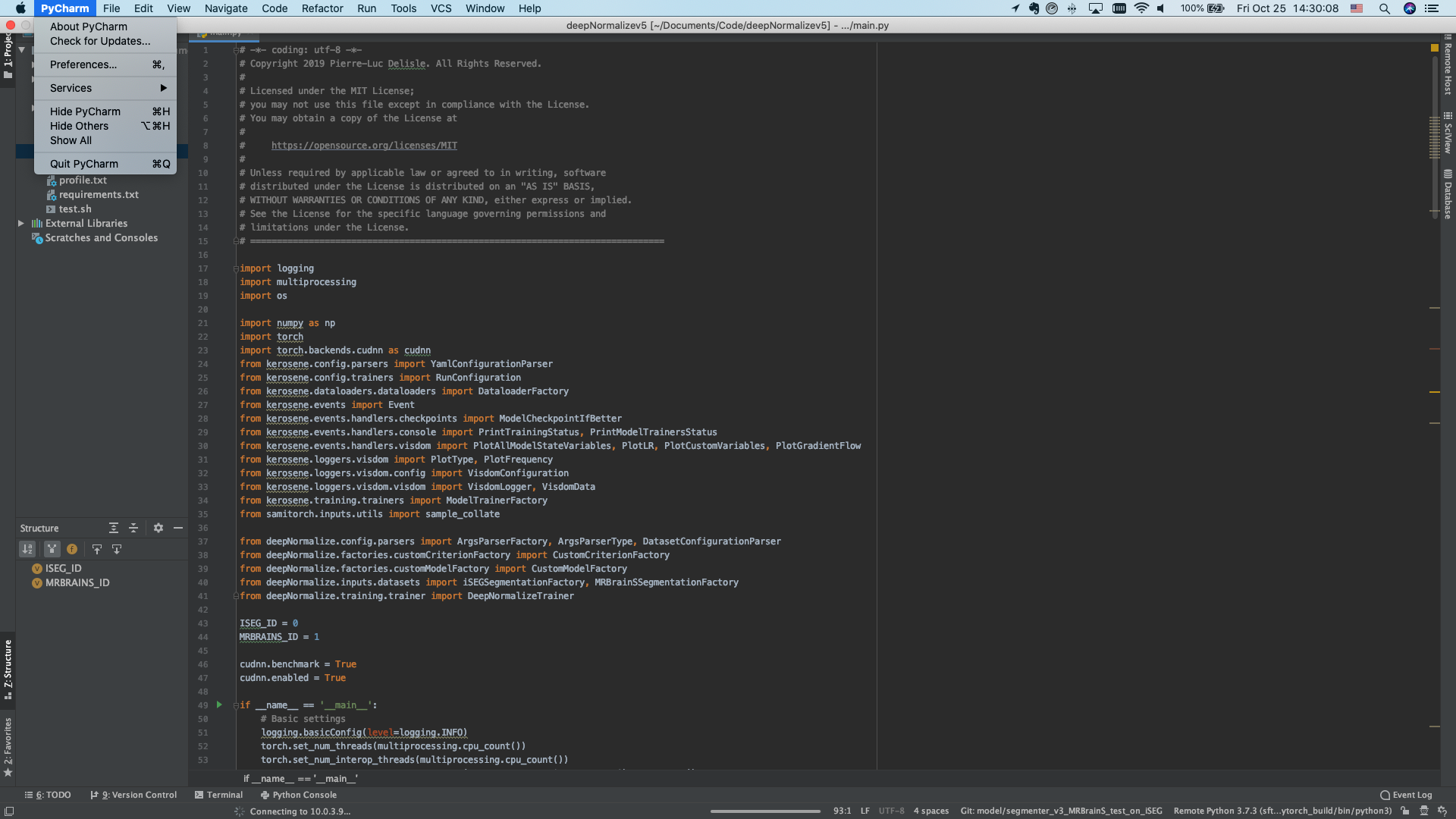
Then, go to Build, execution, deployment section and then Deployment.
Click the  button to add a configuration, and enter the IP address, username and password given
by ETS’ chief IT engineer to connect to the server. It can also be your personal workstation in the Lab.
button to add a configuration, and enter the IP address, username and password given
by ETS’ chief IT engineer to connect to the server. It can also be your personal workstation in the Lab.
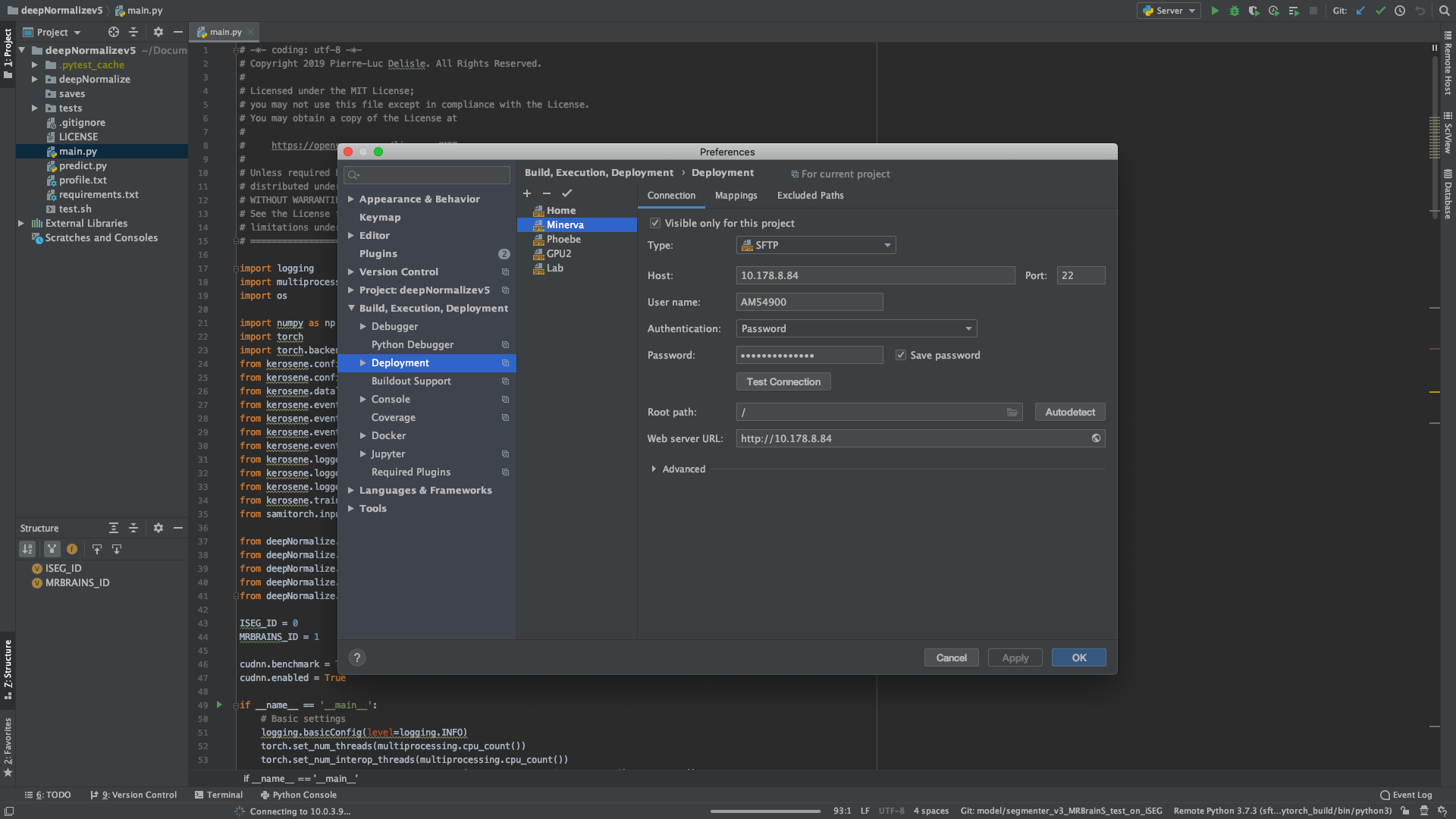
Then, go to the Mappings tab and select the desired source and destination paths. The source is likely be your local
project path, while the destination path should be either in /data/users/<YOUR USER> if available or your personal
/home/<YOUR USER> home folder.
Configuring remote SSH interpreter
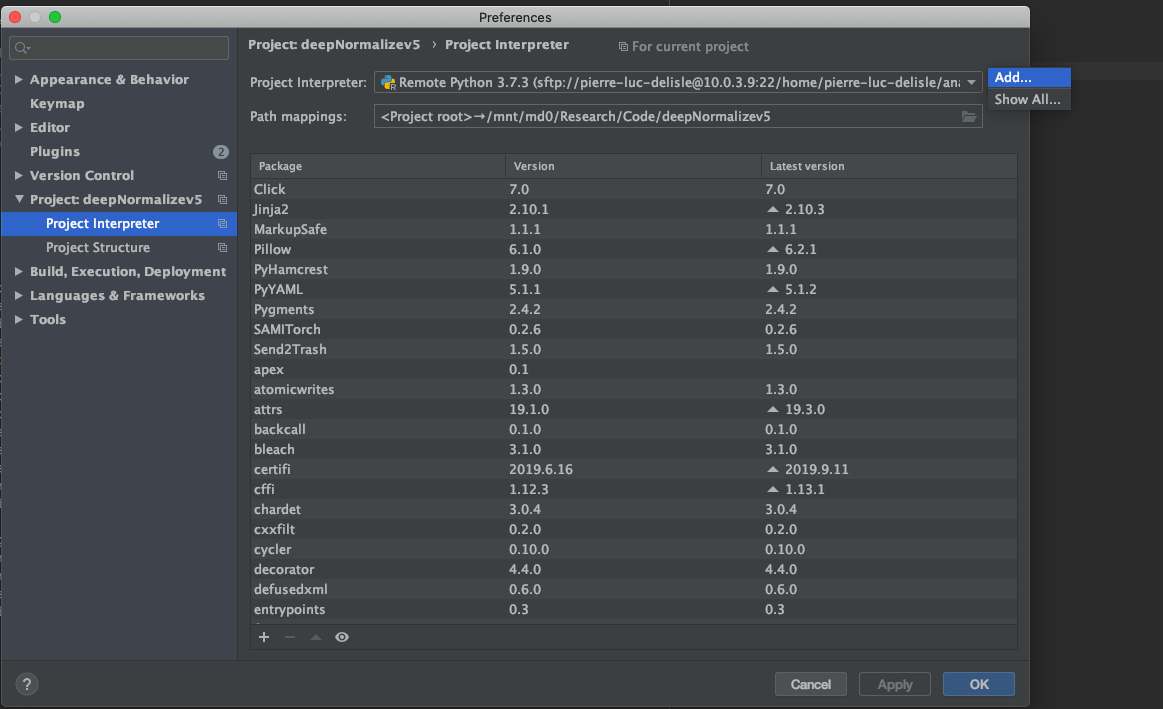
To run your Python code remotely on a server, an SSH Python interpreter must be configured. Still in the PyCharm Menu ->
Preferences, select the Project: <YOUR PROJECT> section.

Click the  icon to add an interpreter.
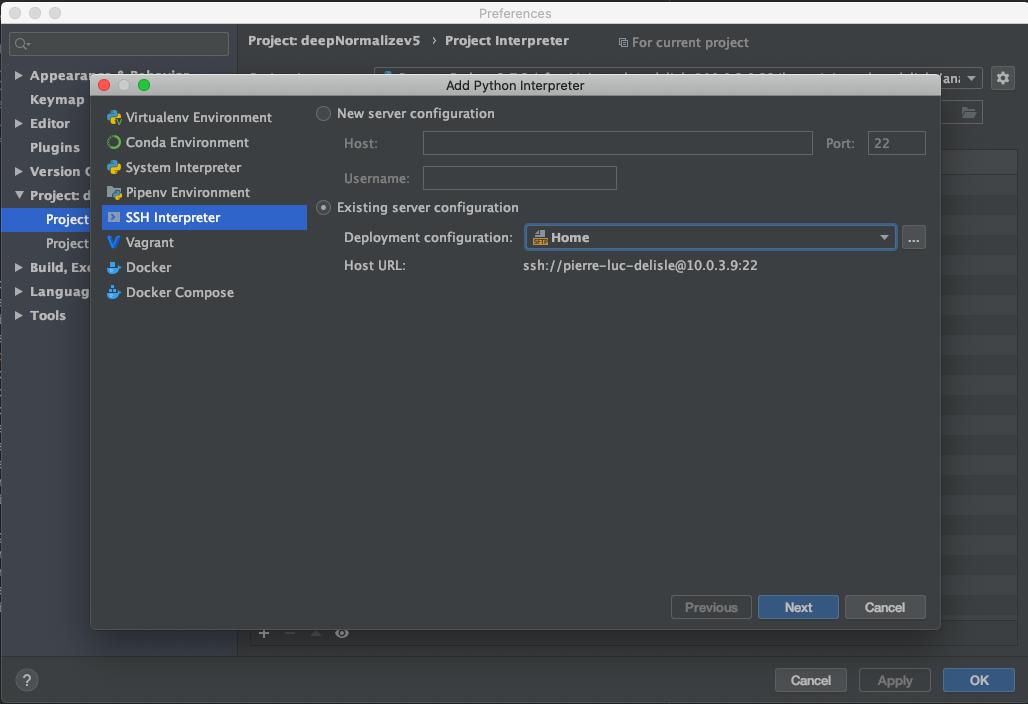
Select the SSH Interpreter on the left, and select the previously created Deployment configuration.
Get the path of the UNIX Python binary executable file. This is likely to be a Conda environment under
/home/<YOUR USER>/anaconda3/envs/<YOUR ENV>/bin/python3 or a virtualenv virtual environment
/home/<YOUR USER>/path/to/your/virtualenv.
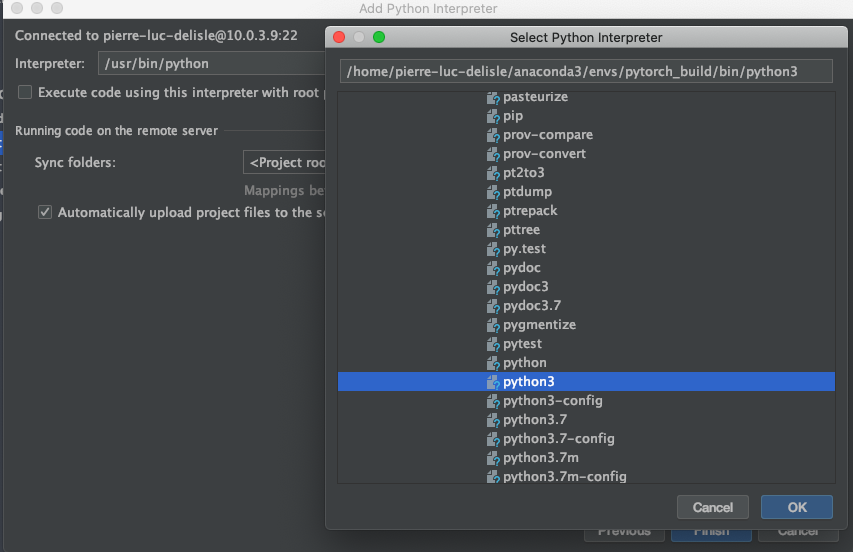
Next to Sync folders, select the proper destination folder. It should be your project’s deployment path.
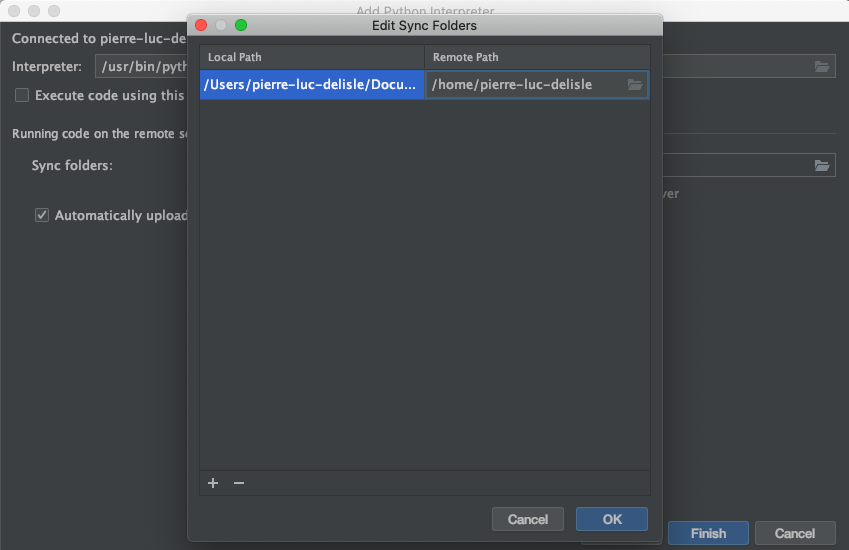
Click on Finish and you are ready to upload your code. Select your root project folder, right click, and under Deployment
section, select Upload to <DEPLOYMENT NAME>.

Your code will be uploaded to the remote server. With the configured Python interpreter, you will be able to either run or debug the code remotely.
ETS VPN
All ETS research servers and personal workstations can be accessed over VPN using Cisco Anyconnect VPN app with ETS profile.
Refer to ETS STI website to know how to download and use Cisco Anyconnect VPN to access remotely school’s resources.
Reference management
Most people in the lab uses Mendeley reference management system. Simple to use and free, it can also sync references on the web and access it from all your devices. You can also easily take notes on saved PDFs. Moreover, Mendeley is also supported by ETS’s library and you can also follow courses on how to use it and master the reference management.